
Essential CSGO FPS optimization strategies to maximize performance and competitive advantage
Understanding FPS Impact in CSGO
Mastering CSGO performance optimization requires understanding how frame rates influence competitive gameplay. Higher FPS delivers tangible advantages beyond visual smoothness, directly impacting your reaction time and aiming precision during intense firefights.
When running CSGO on high-refresh rate monitors like 240Hz displays, maintaining consistent frame rates above your monitor’s refresh rate ensures minimal input lag. This technical advantage becomes particularly noticeable during quick peeks and flick shots where every millisecond counts. Professional players consistently prioritize FPS stability over graphical fidelity for this exact reason.
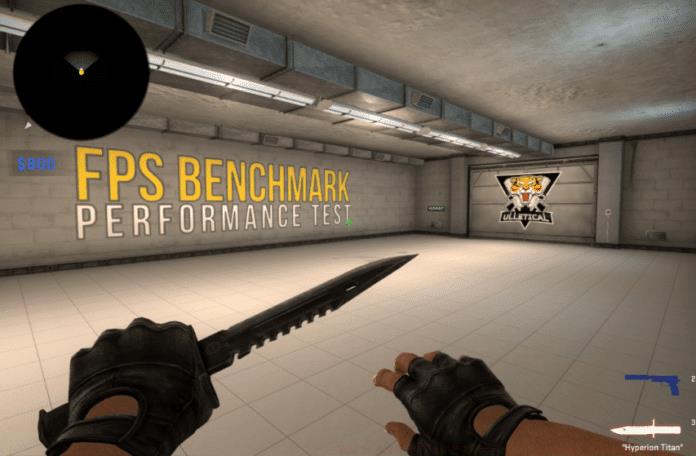
While FPS remains the primary tunable performance metric, network factors like server variance, packet loss, and ping spikes significantly influence gameplay fluidity. These elements depend on both your system configuration and internet connection quality, creating a holistic performance ecosystem that competitive players must optimize comprehensively.
Critical In-Game Settings Configuration
Begin your optimization journey by disabling Vsync immediately. This setting synchronizes your frame rate with your monitor’s refresh rate, artificially capping performance and introducing noticeable input delay that hampers competitive play. Instead, enable multi-core rendering to utilize all available processor cores efficiently, preventing core parking and distributing workload across your CPU’s full potential.
Configure remaining visual settings to their lowest values for maximum competitive advantage. Disable texture streaming completely and turn off anti-aliasing, then set texture filtering to bilinear mode. These adjustments reduce GPU load significantly while maintaining clear visibility of enemy models and important map elements.
Eliminate laptop power-saving modes and disable motion blur entirely. Power management features often throttle performance to conserve energy, while motion blur obscures visual clarity during rapid movements. Many players overlook these settings, unknowingly sacrificing crucial frames during tournament-level play.
Common Mistake to Avoid: Don’t assume higher texture quality improves gameplay. Competitive players consistently use low textures to enhance enemy visibility and reduce visual clutter. The minimal visual improvement from high-quality textures doesn’t justify the performance cost during ranked matches.
Launch Options for Maximum FPS
Steam launch options provide powerful command-line parameters that significantly boost CSGO performance. Access these settings through your Steam library by right-clicking Counter-Strike: Global Offensive, selecting Properties, then navigating to the Launch Options field.
Implement these performance-enhancing parameters for immediate FPS improvements. The most effective commands include core allocation directives and refresh rate specifications that override default game behaviors.
Performance Legend: Replace Z with your processor’s physical core count and X with your monitor’s maximum refresh rate. These variables ensure optimal hardware utilization tailored to your specific system configuration.
Advanced Tip: Combine -high (priority boost) with -threads Z (core allocation) for systems with strong multi-core processors. This combination forces Windows to prioritize CSGO processing while ensuring all available cores contribute to game performance, particularly beneficial during smoke-filled scenes and intense firefights.
Driver and System-Level Optimization
Maintain updated graphics drivers through official vendor applications. NVIDIA users should utilize GeForce Experience, while AMD gamers benefit from Radeon Software. Regular driver updates often include game-specific optimizations and critical bug fixes that directly impact CSGO performance.
Access your GPU control panel for deeper performance customization. NVIDIA Control Panel users should navigate to 3D Settings, manage individual program settings, and locate CSGO.exe for targeted optimization.
- Anisotropic Filtering: Off
- Antialiasing-Gamma Correction: Off
- Maximum Pre-rendered Frames: 1
- Power Management Mode: Prefer Maximum Performance
- Preferred refresh rate: Highest Available
- Texture Filtering – Anisotropic sample optimization: Off
- Texture Filtering -negative LOD bias: Allow
- Texture Filtering-Quality: High Performance
- Texture Filtering-Trilinear Optimization: Off
- Threaded Optimization: On
- Triple Buffering: Off
Windows Optimization: Disable fullscreen optimizations for CSGO by navigating to the game’s executable properties and checking the ‘Disable fullscreen optimizations’ box. This Windows feature often interferes with exclusive fullscreen mode, adding unnecessary input lag and reducing frame consistency.
Also Read | How to use Valorant Elo Tracker Overlay
Advanced Performance Techniques
Beyond basic settings, competitive players should implement network optimizations to complement FPS improvements. Use wired Ethernet connections whenever possible and configure your router for gaming traffic prioritization. Network stability becomes increasingly important as FPS increases, since higher frame rates make packet loss and latency more noticeable.
Monitor your system temperatures during extended gaming sessions. Thermal throttling can silently reduce performance mid-match, particularly on laptops and compact gaming systems. Use monitoring software to ensure your CPU and GPU maintain optimal operating temperatures for consistent frame rates.
Hardware Considerations: While software optimization provides significant gains, hardware upgrades offer the ultimate performance solution. Consider RAM speed improvements, SSD installations for faster loading, and GPU upgrades if your system struggles to maintain 200+ FPS consistently. The competitive difference between 144 FPS and 300 FPS becomes particularly noticeable on high-refresh rate monitors.
Pro Player Insight: Many professional competitors use custom resolution settings and stretched aspect ratios not just for preference, but because these configurations often yield additional FPS while maintaining clear enemy visibility. Experiment with 4:3 stretched resolutions if you’re seeking every possible performance advantage.
No reproduction without permission:OnLineGames Guides » How to boost FPS in CSGO 2021 Essential CSGO FPS optimization strategies to maximize performance and competitive advantage