
Complete guide to setting up PSVR on PS5 with adapter requirements, step-by-step installation, and optimization tips
Understanding the PSVR-to-PS5 Compatibility Requirements
The integration of PlayStation VR with Sony’s latest console generation requires specific hardware considerations. While the PS5 delivers enhanced performance capabilities, connecting your existing PSVR equipment involves an essential compatibility component that wasn’t necessary with previous PlayStation models.
Acquiring the official PlayStation Camera Adapter represents the foundational step in this process. This specialized connector bridges the technological gap between PSVR’s original design and the PS5’s updated hardware architecture. Unlike standard accessories available through retail channels, this adapter is distributed exclusively through Sony’s support program, ensuring proper compatibility and functionality.
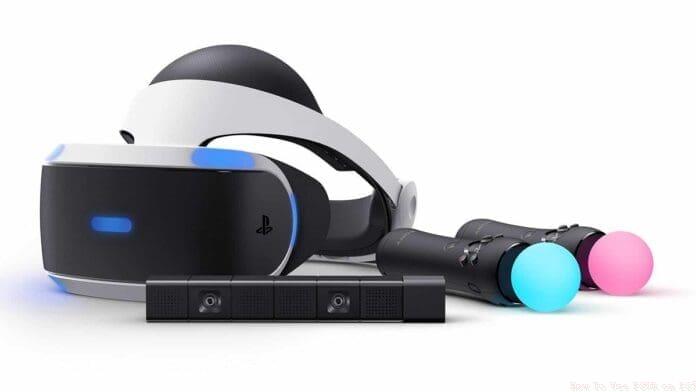
Before beginning installation, verify you have all necessary components: the PSVR headset, Processor Unit, PlayStation Camera, Camera Adapter, HDMI cables, and the AC power cord. Missing any element will prevent successful setup and potentially cause frustration during the installation process.
Step-by-Step PSVR Installation Process
With your adapter secured and components verified, proceed with this meticulous connection sequence. Proper order matters significantly for system recognition and performance optimization.
- Connect the Camera Adapter to an available USB port on your PS5’s rear panel, ensuring secure insertion
- Attach your PlayStation Camera’s USB connector to the adapter’s corresponding port
- Position the camera strategically based on your play area – either above or below your display depending on room configuration
- Run one HDMI cable from your PS5’s HDMI OUT port to the Processor Unit’s HDMI PS4 input
- Connect a second HDMI cable from your television to the Processor Unit’s HDMI TV output
- Utilize the proprietary connection cable included with your PSVR to link the PS5 with the port immediately adjacent to the HDMI inputs on the Processor Unit
- Finally, attach your VR headset to the front-facing port on the Processor Unit, carefully aligning the PlayStation symbols on both cable connectors and unit ports
This systematic approach ensures each component communicates properly with the PS5’s advanced hardware architecture, minimizing potential recognition issues or performance degradation.
Advanced Setup Tips and Troubleshooting
Beyond basic connectivity, several optimization strategies enhance your VR experience significantly. Camera placement deserves particular attention – position it approximately 6 feet from your play area at eye level when standing, ensuring clear line-of-sight to your headset and controller lights.
Common installation errors include reversing HDMI cable connections between console and television ports, which prevents proper signal transmission. Always verify input/output labels match your connection points. Additionally, ensure the Processor Unit receives adequate ventilation to prevent overheating during extended gaming sessions.
For optimal performance, calibrate your PlayStation Camera through the PS5’s peripheral settings menu before first use. This process enhances tracking accuracy and reduces motion drift. Consider cable management solutions to prevent tripping hazards and maintain organized play space, as tangled cables frequently disrupt immersion.
After completing physical connections, power on your system and navigate to the VR settings menu to verify proper recognition of all components. Test tracking functionality by moving within your play area while observing the camera view to identify potential blind spots or reflection issues.
No reproduction without permission:OnLineGames Guides » How To Use PSVR on PS5 Complete guide to setting up PSVR on PS5 with adapter requirements, step-by-step installation, and optimization tips