
TL;DR
- Configure weapon swap hotkeys for faster combat transitions than using number keys
- Enable critical UI elements like always-show reticle and weapon cooldown timers for ranged combat
- Set bandwidth to High and cap FPS to monitor refresh rate for optimal performance
- Disable camera shake and duel invites to prevent combat disadvantages
- Optimize audio output and voice chat settings for immersion and streamer safety
Mastering New World‘s extensive settings menu can dramatically transform your gaming experience from average to exceptional. This comprehensive guide covers the most impactful configurations that benefit everyone from casual solo adventurers to competitive PvP specialists and professional streamers. Proper settings management provides superior control over game notifications, accessibility features, and overall performance optimization.
Many players overlook these critical adjustments, resulting in suboptimal combat performance, unnecessary hardware strain, and frustrating social interactions. By implementing these recommendations, you’ll gain significant advantages in both PvE and PvP scenarios while protecting your system from excessive wear.
The settings are organized by functional categories to help you systematically optimize each aspect of your gameplay. Each recommendation includes practical implementation steps and explains the tangible benefits you’ll experience.
Weapon Swap Optimization
Navigate to the Action tab in settings and assign a dedicated hotkey for Swap Active Weapons functionality. This configuration enables instantaneous weapon changes during intense combat situations.
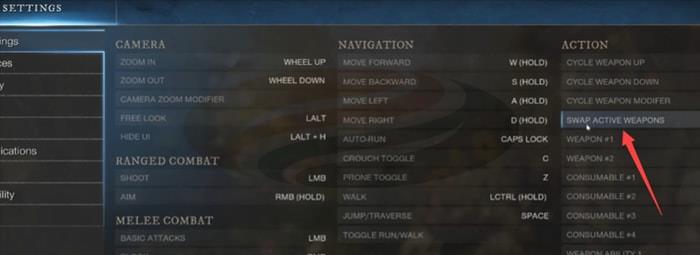
The weapon swap hotkey provides substantially faster equipment transitions compared to manually pressing number keys 1 and 2. This efficiency gain becomes crucial in PvP engagements where split-second decisions determine victory or defeat. Many elite players utilize mouse side buttons for this function to maintain movement control during swaps.
Combat Visibility Enhancements
Access the Gameplay section and locate Camera Shake in the options menu. Ensure this setting remains disabled to maintain visual stability during enemy encounters.
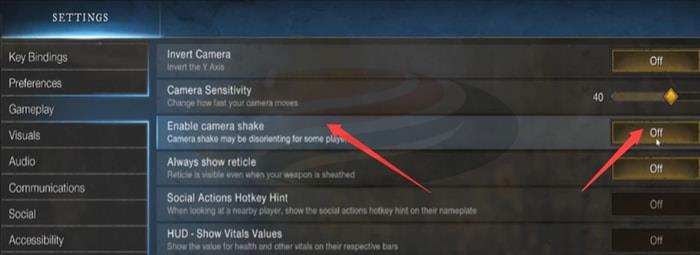
Powerful adversaries and elite creatures generate significant screen vibrations during their attack animations. Disabling camera shake dramatically improves aiming precision for bow, musket, and magical weapon users by eliminating disruptive visual feedback.
Activate Always Show Reticle to maintain consistent aiming reference points. This setting provides familiar first-person shooter targeting reticles that remain visible throughout combat.
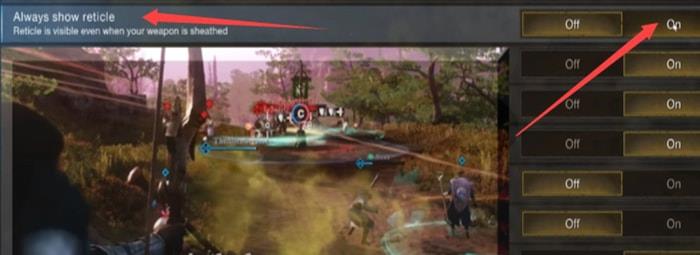
Ranged combat specialists and magic users absolutely require this visual aid for optimal performance. The persistent reticle allows continuous target tracking without visual reference loss during ability activations or environmental interactions.
Ability Cooldown Management
Enable Always Show Weapons in the interface options to maintain constant visibility of your equipped gear status and cooldown progression.
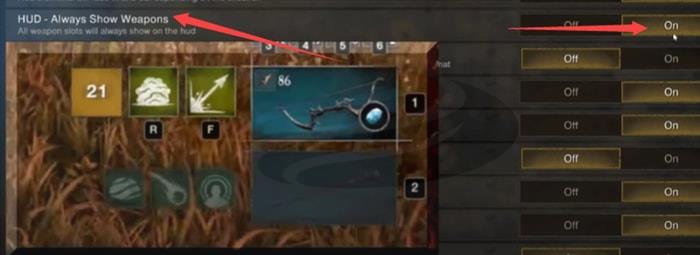
This configuration proves essential for monitoring ability availability across both weapon sets simultaneously. Without this setting, players frequently miss crucial cooldown completions during heated battles.
Activate Show Extra Ability Cooldowns to display individual skill timers adjacent to your health indicator rather than solely on the ability bar.
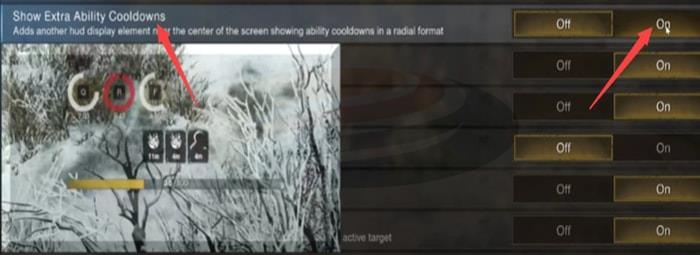
The additional cooldown display becomes invaluable in player-versus-player combat where visual attention must remain focused on opponents rather than interface elements. This prevents situational awareness loss during critical engagements.
Network Performance Settings
Locate Bandwidth Mode within the network options and select the High Setting configuration for optimal data transmission prioritization.
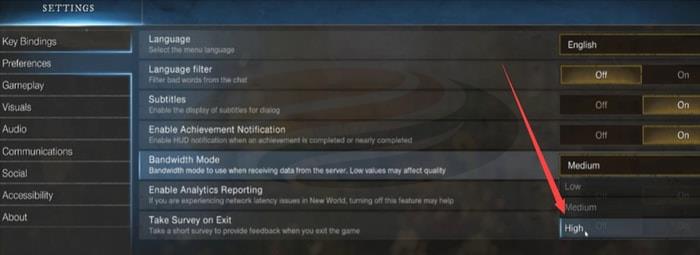
This network prioritization ensures smoother gameplay with reduced latency spikes and more consistent frame delivery. Players on congested home networks will notice particularly significant improvements in combat responsiveness.
Field of View Configuration
Access the Visuals tab and adjust the FoV Slider to its maximum right position for expanded vertical viewing perspective.
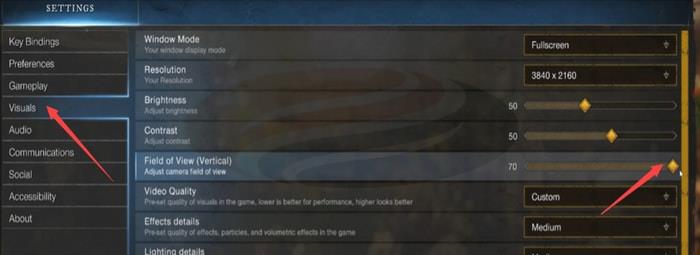
While this adjustment primarily affects vertical field of view rather than horizontal, the expanded perspective provides substantial environmental awareness advantages for detecting threats and navigation.
Frame Rate Management
Within the same Visuals section, locate the Max FPS setting and configure it to match your display’s native refresh rate precisely.

Capping your frame rate to your monitor’s refresh rate prevents unnecessary GPU and CPU utilization that generates excessive heat and power consumption without visual benefit.
Unrestricted frame rendering forces hardware components to operate at maximum capacity continuously, potentially reducing their operational lifespan and increasing system temperatures during extended gaming sessions.
Anti-Griefing Protection
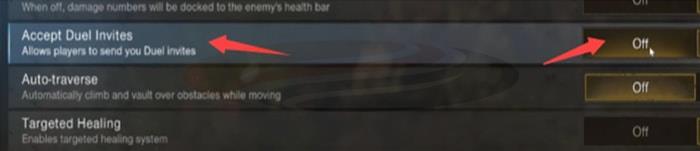
Exercise situational awareness with the Accept Duel Invites feature, particularly during open-world PvP activities or resource gathering expeditions.
Many players exploit this mechanic to obstruct vision or initiate unexpected combat. Accidentally accepting a duel invitation during PvP can result in immediate elimination, while during gathering sessions it may enable resource theft from your targeted nodes.
Audio Output Optimization
Navigate to the Audio tab and scroll downward until you locate the Output Configuration section.

Configure this setting according to your specific audio hardware, with Headphones being the optimal choice for most gaming setups.
Proper audio configuration delivers accurate stereo imaging and spatial awareness, allowing precise identification of sound source directions—particularly advantageous in PvP scenarios where auditory cues provide critical tactical information.
Voice Chat Management
Access the Communications tab and locate the Voice Chat Mode setting for managing in-game vocal interactions.
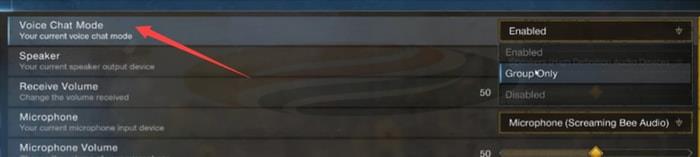
This configuration determines whether microphone-equipped players can communicate with you openly within the game world.
For players preferring silent gameplay experiences without disruptive background chatter, configure this setting to Group Only or completely disable voice functionality. This proves especially valuable for streamers seeking to maintain broadcast audio quality and content control.
Beyond the fundamental settings, several advanced configurations can further enhance your New World experience. Monitor your system temperatures during extended play sessions to ensure optimal performance sustainability.
Common mistakes include leaving FPS uncapped, which strains hardware unnecessarily, and forgetting to disable duel invites before entering contested territories.
For competitive players, consider creating multiple setting profiles for different activities—PvP, PvE, and gathering each benefit from specialized configurations.
Performance monitoring tools like MSI Afterburner can help track system stability and identify potential bottlenecks affecting your gameplay experience.
These optimized settings provide measurable advantages whether you’re exploring Aeternum’s wilderness, engaging in faction warfare, or streaming to an audience. Proper configuration ensures you extract maximum performance from both the game and your hardware.
For additional gaming optimization strategies, explore our comprehensive Battlefield 6 Complete Guide for cross-game performance insights.
Remember that settings preferences often vary based on playstyle—experiment with these recommendations to find your personal optimal configuration.
If you seek deeper weapon mastery, our BF6 Weapons Unlock Guide offers valuable principles applicable to New World’s combat system as well.
Action Checklist
- Configure weapon swap hotkey in Action tab for faster combat transitions
- Set Bandwidth Mode to High for network prioritization and reduced latency
- Disable Camera Shake in Gameplay section for improved aiming stability
- Enable Always Show Reticle and Weapons for constant combat feedback
- Activate Show Extra Ability Cooldowns for better skill tracking
- Configure Max FPS to match monitor refresh rate for hardware protection
- Set Audio Output Configuration to Headphones for optimal spatial awareness
- Adjust Voice Chat Mode to Group Only or Off for streamer safety and immersion
- Disable Accept Duel Invites when in PvP zones or gathering resources
No reproduction without permission:OnLineGames Guides » Some Important Settings You Must Know When Playing New World Essential New World settings to optimize performance, combat effectiveness, and gameplay experience for all players